

Many people assume a faster laptop or extra RAM is the quickest path to a better home-work setup—but small, inexpensive tech accessories often deliver bigger day-to-day benefits. Below you'll find the practical, prioritized accessories that actually change comfort and output for remote work, with clear reasons to choose each one.
Quick answer: the seven essentials that matter most
If you want one concise checklist to start: a second monitor or laptop stand, an ergonomic keyboard and mouse, reliable audio (headphones or speaker), a good webcam or lighting, a USB-C dock or hub, cable management, and a task lamp. Those seven cover visibility, comfort, connectivity, and focus—four areas that most people notice within a day of using them.
Why a second monitor or laptop stand should be first
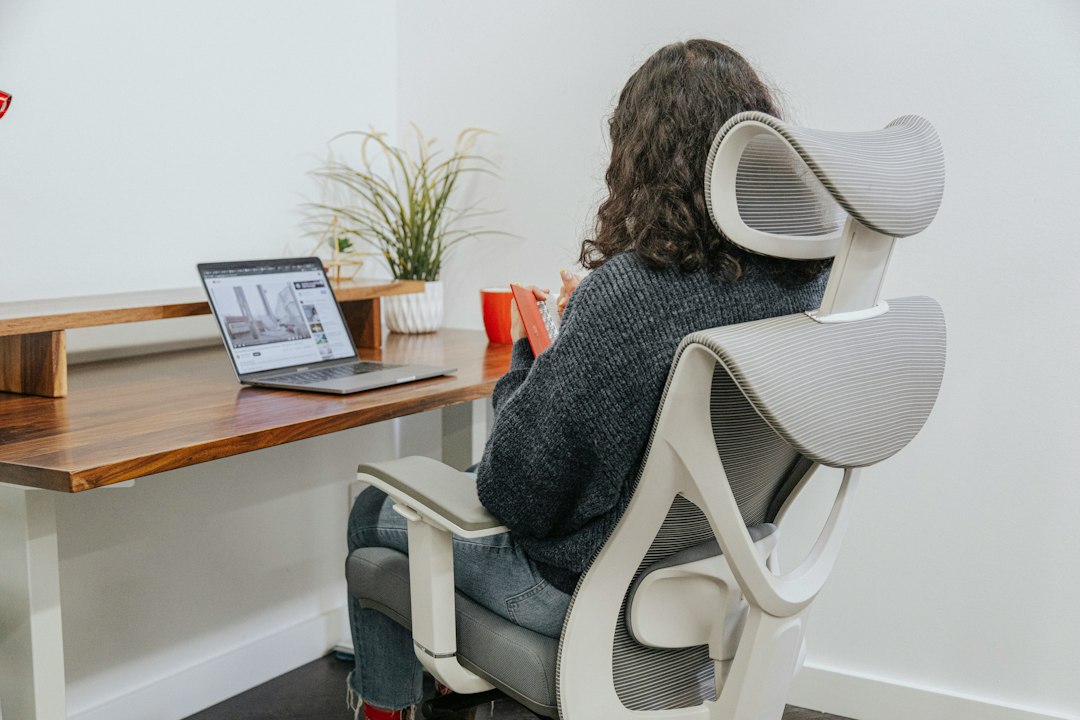
Most productivity gains come from screen real estate and correct viewing angle. A second monitor—or at minimum a laptop stand that raises the screen to eye level paired with an external keyboard—reduces neck strain and makes multitasking (documents, video calls, chat) far less fiddly.
Choose a monitor sized to your desk: 24–27" is a common sweet spot. If space is tight, a vertical monitor or a monitor arm that clamps to the desk lets you push the screen back when you need room.
Ergonomic keyboard and mouse: what to look for
Ergonomics matter more than wireless vs wired. Look for: a low-profile keyboard with a slight negative tilt or split layout if you type many hours; a mouse shaped to your hand with good thumb support; and easy switching between devices if you use multiple machines.
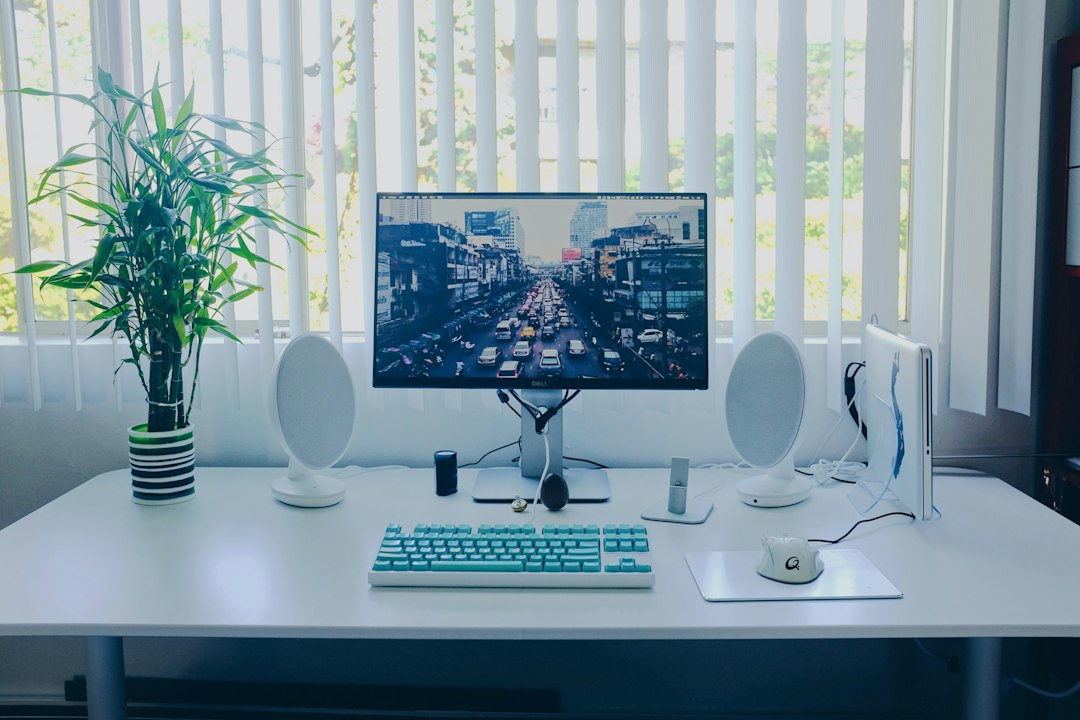
Small trade-offs: mechanical keys feel satisfying and reduce fatigue for some, but they can be loud—consider low-profile or silent switches for shared spaces.
Audio and focus: headphones, mics and room acoustics
Clear audio reduces meeting friction. For noisy homes, active noise-cancelling headphones make it dramatically easier to concentrate; for quieter setups, comfortable closed-back headphones or a decent USB microphone with a pop filter can be better for call clarity.
If you prefer not to wear headphones, a compact desktop speaker with good mids and a desk-mounted cardioid mic can improve voice pickup without capturing the whole room.
[hAZAM_IMAGE REMOVED FOR COMPLIANCE]Video calls: webcam and lighting that actually help
Built-in laptop cameras are often grainy and poorly framed. A small external webcam mounted at eye level gives a sharper picture and a better field of view. Pair it with soft front lighting—an adjustable LED panel or a ring light with dimmer—to avoid cast shadows and washed-out faces.
Lighting tip: position the light slightly above the camera and use a diffuser or lower brightness to keep skin tones natural.
Connectivity: docks, hubs and why USB-C matters
A single USB-C dock that provides power, video output, Ethernet and multiple USB ports turns a laptop into a full desktop in one cable. If your laptop lacks USB-C, a powered USB-A hub plus a separate HDMI/DisplayPort adapter works but is less tidy.
Pick a dock that matches the peripherals you actually use: two display outputs if you run dual monitors, Gigabit Ethernet for stable calls, and enough downstream USB-A ports for mouse, keyboard and external drives.
Cable management and power: small items, big payoff
Loose cables make even a good setup feel sloppy and cause friction when moving devices. Use a mix of cable clips, a power strip with a high-power USB outlet, and under-desk trays or adhesive cable channels to keep cords anchored and out of sight.
Also consider a small UPS or surge protector for critical devices if your area has frequent outages—this protects work in progress and keeps calls from dropping unexpectedly.
Lighting and eye health: more than brightness
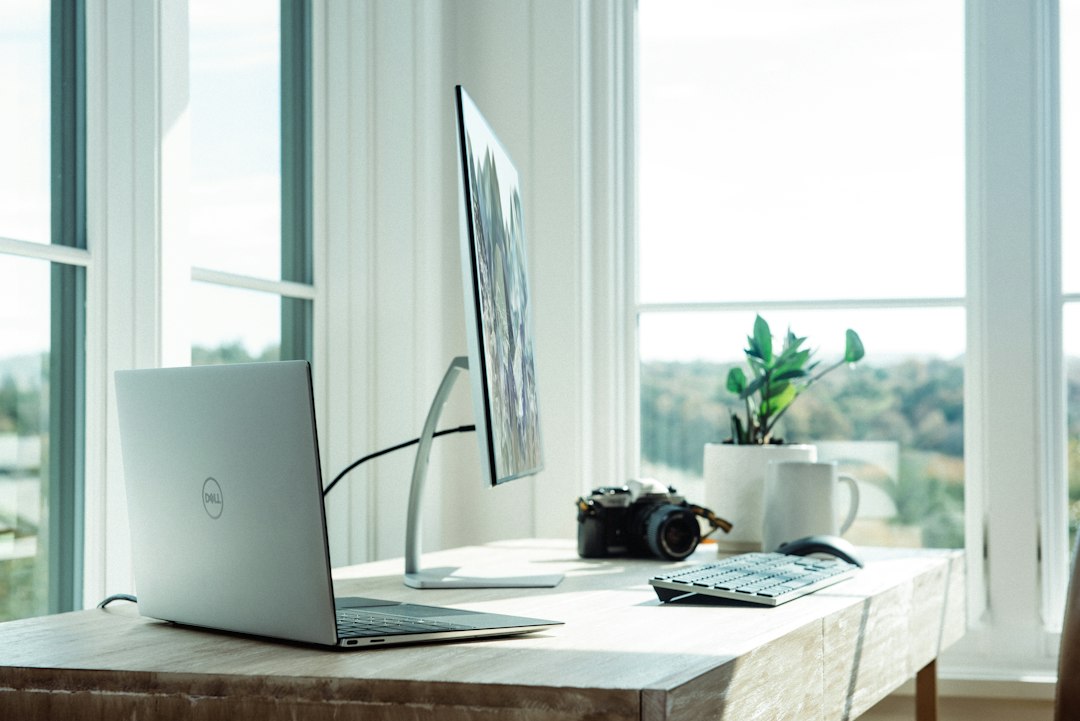
A dimmable task lamp with adjustable color temperature reduces eye strain across a long day. Cooler light (5000K) helps alertness in the morning; warmer light (2700–3000K) is better for late-afternoon or evening work. Position the lamp to avoid screen glare and keep ambient room light even.
Small but essential extras
- Monitor stand with storage to raise screen and free desk space.
- Webcam cover for privacy when not on calls.
- Spare charging cable and a small cable organizer for travel days.
- Desk mat to define workspace and reduce mouse slip.
One product to consider from the store
If cable clutter is what undermines your setup, a simple pack of silicone cable organizers will solve most daily annoyances and protect charging cords from fraying. They’re inexpensive, install quickly, and make the rest of your tech feel sharper.
- Measure desk depth and width to confirm monitor/arm fit.
- Check laptop ports to decide between a dock or hub.
- Note dominant hand and typing style for mouse/keyboard fit.
- List top three annoyances (noise, screen angle, cables) to prioritize purchases.
- Test lighting at your usual working times before buying a lamp.
Invest first in screen height and ergonomics, then address communication (audio and video) and connectivity. Tackle cable management early—small fixes here improve usability more than a marginally faster laptop.
Do I need a monitor arm or is a stand fine?
A stand is fine if you rarely move the monitor; choose a monitor arm if you want more height range, tilt, and the ability to reclaim desk space by pushing the monitor back.
Should I buy wired or wireless peripherals?
Wired gives consistent latency and no battery changes; wireless reduces desk clutter and makes switching devices easier—pick based on whether convenience or absolute reliability matters more to your work.
Is active noise cancellation worth it?
Yes for noisy homes or frequent deep-focus work—it reduces distractions quickly. For occasional use, comfortable closed-back headphones may suffice.
Can a small LED panel replace a ring light?
A compact LED panel with adjustable brightness and diffuser can match or outperform a ring light and is often less intrusive; prioritize soft, even illumination over brightness alone.