

Start with one clear goal: make work easier, not Instagram-worthy
Most readers want desk setup ideas that actually increase focus, comfort and speed. Ignore decorative clutter, novelty-only gadgets and “trends” that reduce usable surface area. Focus on adjustments that change how you work: posture, reach, visual comfort, and frictionless access to tools.
End state: a desk that supports sustained work
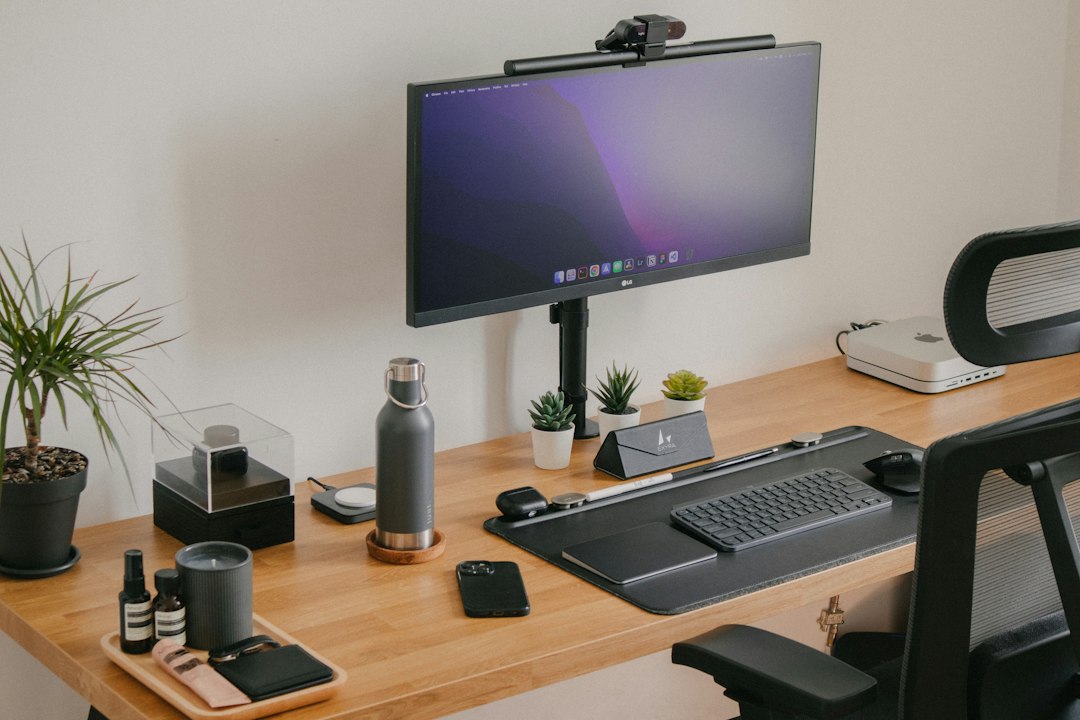
Your ideal result is simple to describe: a work surface sized for your tasks, a primary screen at eye level, a neutral keyboard and mouse zone at elbow height, direct task lighting, quick-access storage, and cables out of view. Below are 12 specific ideas to build that outcome, ordered so you can apply them progressively.
1. Pick the right desk footprint first
Measure your room and list the activities you do at the desk (laptop work, paperwork, drawing, meetings). If you mostly type and video-call, a 48–60" desk with 24–30" depth is usually enough. If you spread papers or sketch, increase depth to 30–36". Prioritize uninterrupted legroom and a clear zone for your chair to move.
2. Set monitor(s) and laptop to the right height
Place your topmost monitor edge at or slightly below eye level when seated upright. If you use a laptop as primary, add a simple laptop riser and external keyboard so the screen height and typing height are independent. For two monitors, keep the primary centered and the secondary angled toward you.
3. Optimize keyboard and mouse position for ergonomics
Your forearms should be roughly parallel to the floor with elbows near 90°. Keep the keyboard and mouse in the same plane and within comfortable reach—avoid overreaching past shoulder width. A small wrist rest can help during pauses, but don’t rest wrists while typing.
4. Add task lighting targeted to your work zone
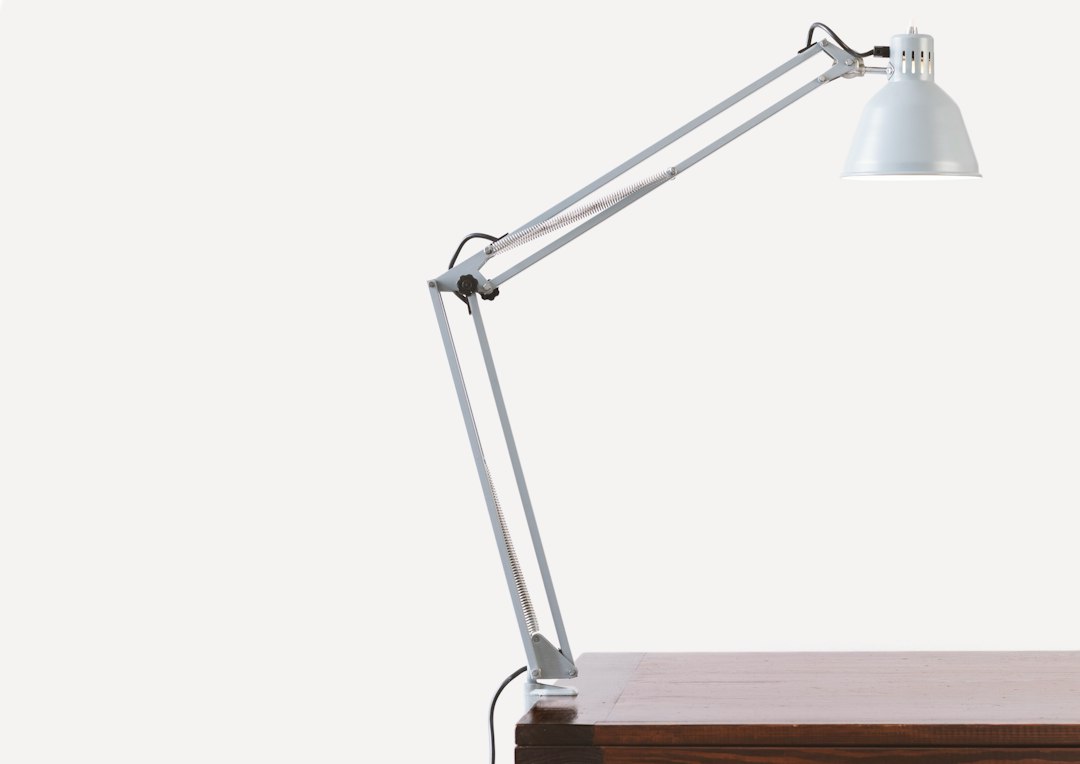
Ambient ceiling light rarely provides enough contrast for long work sessions. Use an adjustable desk lamp that casts light across paperwork without producing glare on your monitor. A lamp with color temperature around 3500–4500K is a good middle ground for focus and accurate color.
5. Control glare and background brightness
Position your desk so windows are to the side of monitors, not directly behind or in front. If glare is unavoidable, add a simple screen hood, increase monitor brightness modestly, or use blinds. Matching the brightness of the room to your screen reduces eye strain during long sessions.
6. Use cable management that stays invisible
Loose cables create visual noise and friction. Attach adhesive cable clips along the desk edge for frequently moved cables and run power/internet lines through an under-desk tray or simple zip-tied raceway. For chargers you use daily, place magnetic cable organizers at the desk edge for quick pickup.
7. Reduce desktop clutter with trusted containment
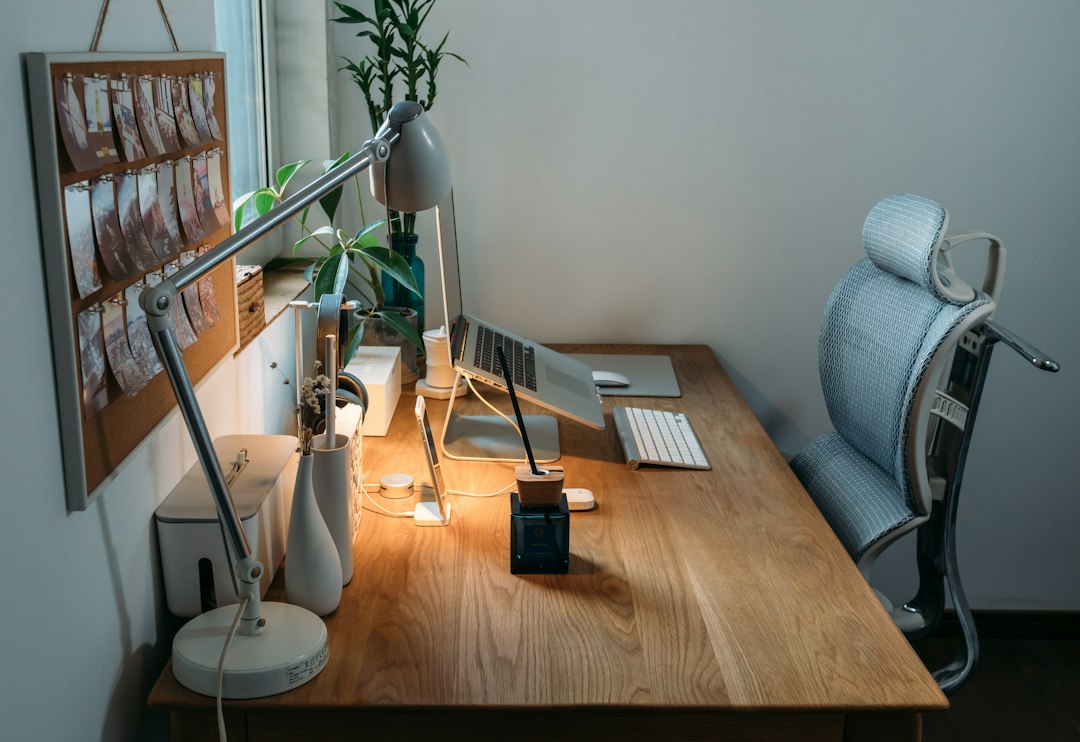
Keep only the tools you use every day on the surface: monitor, keyboard, mouse, lamp, notebook and pen. Use a small rotating organizer or single-compartment tray for pens, chargers and sticky notes. Reserve a drawer or pedestal for items you use weekly to avoid constant visual distraction.
8. Add one piece of posture-supporting furniture
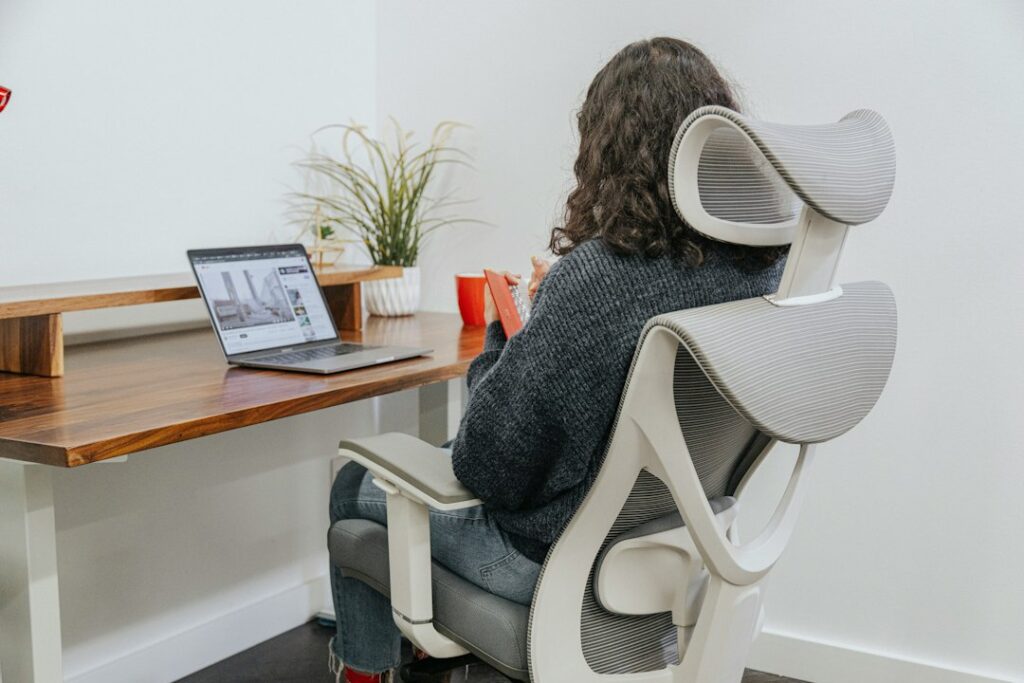
If you sit most of the day, invest in a chair with lumbar support and adjustable seat height. For mixed standing/sitting, a standing desk converter lets you shift posture without replacing furniture. Even small changes—raising the desk by a few inches or switching to a supportive cushion—can reduce afternoon fatigue.
9. Define zones for different activities
Create three functional zones: screen zone (monitor and input devices), paperwork zone (angled to the side with a blotter or pad), and reference zone (shelving, vertical file system, or clipboard). This physical separation reduces task-switching friction and keeps frequently used items predictable.
10. Use a visual system for priorities
Keep one visible board or small tray for “today’s tasks” only. A single sticky-note column, mini whiteboard, or an inbox tray that you empty daily helps prevent important items from blending into general clutter. The system should be visible from your chair and require zero digital switching.
11. Add small comfort and sensory anchors
Low-maintenance plants, a small diffuser, or a textured mouse pad can make the space more pleasant without adding visual noise. Choose one sensory anchor—light scent or a tactile pad—so your workspace signals “work mode” without overwhelming the senses.
12. Keep cables tidy with a compact product recommendation
When you’ve decided where cables must run, use a simple adhesive clip to keep endpoints tidy and reachable. For most desks the highest-ranked practical option is this magnetic USB charging cable organizer: it holds chargers where you need them, snaps closed for neatness and is easy to reposition.
Troubleshooting and quick adaptations
If you still feel discomfort after changes: check monitor height and chair height again with a measuring tape, confirm your feet rest flat on the floor, and test a small wrist elevation for typing. If productivity dips, reduce the visible items on your desk by half for five days and note what you miss—that reveals real versus habitual needs.
- Measure desk depth and clear 24–30" for typing tasks.
- Set monitor top at or slightly below eye level.
- Position keyboard/mouse at elbow height with neutral wrists.
- Install focused task lighting and control window glare.
- Route cables under-desk and add edge clips for daily chargers.
- Choose one ergonomic upgrade: chair or monitor arm.
Pick one functional problem to solve first—posture, lighting, or cable chaos—then apply the related setup idea above. Small targeted changes compound: correct monitor height plus tidy cables and a focused lamp yields immediate comfort and improves sustained productivity.
How much desk space do I actually need?
For primarily computer work, a 48–60" width and 24–30" depth covers most needs; increase depth to 30–36" if you regularly use paper or drawing tools.
Is a standing desk worth it?
Yes if you can alternate postures; even a converter that lets you stand for portions of the day reduces back strain and breaks sedentary time without changing your whole room.
What’s the fastest way to reduce visual clutter?
Remove everything from the surface and add back only five daily-use items; store the rest in a drawer. This exposes what’s truly necessary.
How should I manage cables for frequent laptop docking?
Use a small magnetic cable organizer or adhesive clips at the desk edge for the laptop charger and docking cable; route permanent lines through an under-desk tray to keep them out of sight.
Can a cheap desk lamp make a difference?
A well-placed adjustable lamp with 3500–4500K color temperature will improve contrast and reduce eye strain even if it’s an inexpensive model—position matters more than price.